Arts & Sciences Computing operates five classrooms and two labs which are open to students, faculty, and staff in the College of Arts & Sciences.

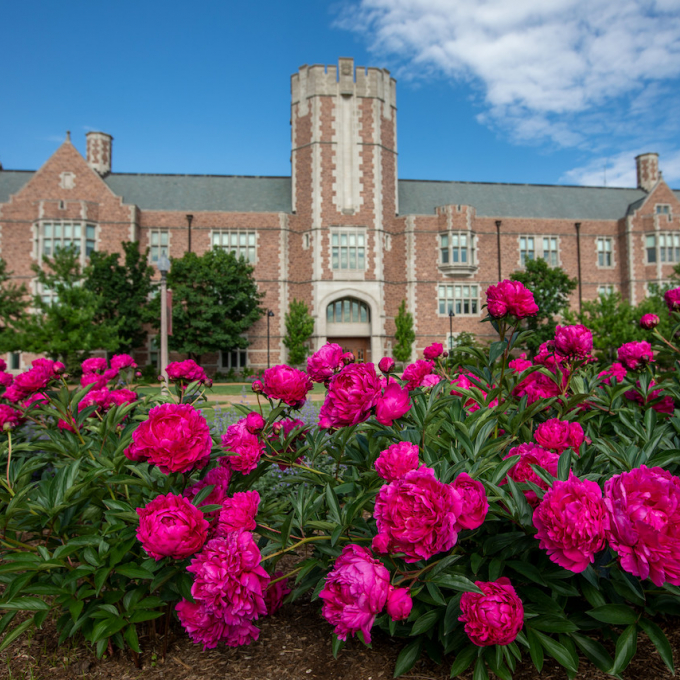
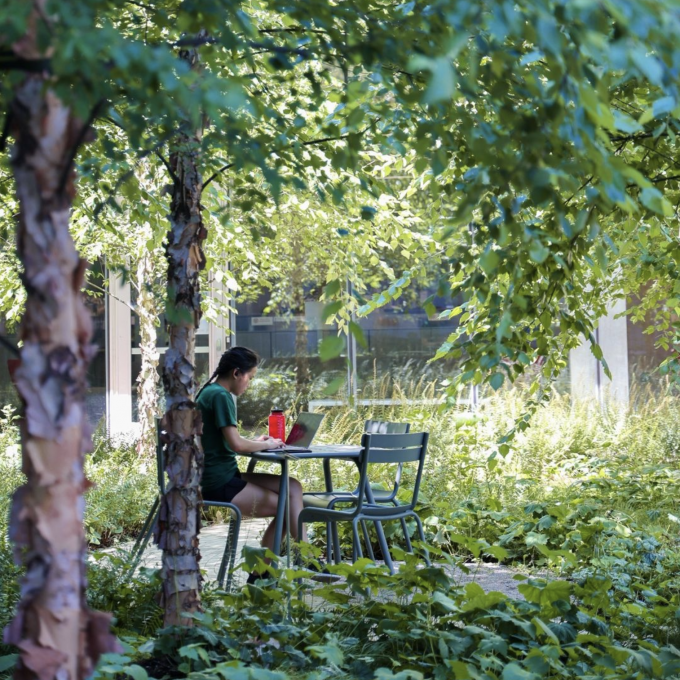


If you are in A&S and are looking for help with technology, you are in the right place! A&S Computing provides technology resources to A&S faculty, staff, and students. Services range from reservable computer classrooms to High Performance Computing access to personalized client support. Our most popular resources are listed to the right. If you don't quickly find what you are searching for, contact us directly. We're here to help you succeed at WashU.
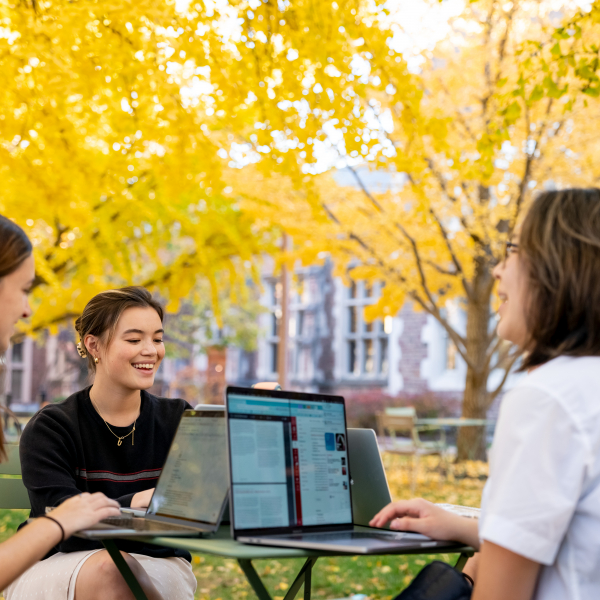
Arts & Sciences Computing operates five classrooms and two labs which are open to students, faculty, and staff in the College of Arts & Sciences.
Join Philip R.O. Payne, Digital Transformation lead, the Digital Transformation implementation team, and University Libraries leaders for some coffee while talking all things digital transformation.
View Event
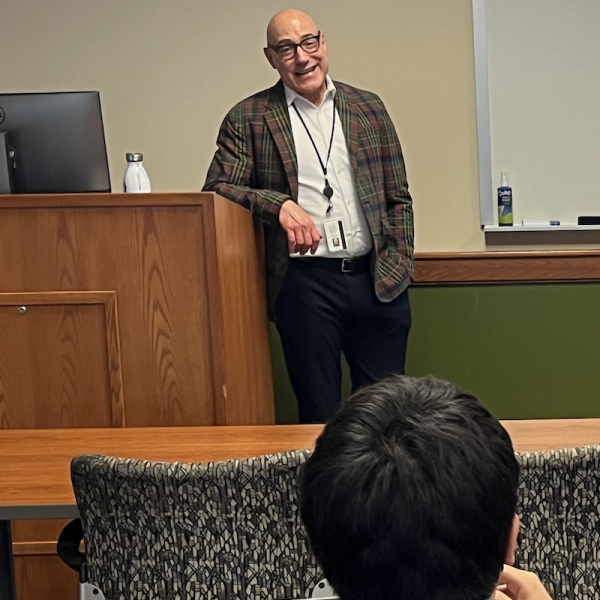
request AV support for your A&S event
request a new list or changes to existing lists
Virtual Private Network (VPN) for full-time A&S faculty and staff
software for which A&S Computing provides support
scheduling and reservations for computer classrooms
instructions for editing in the A&S web theme
learn about web accessibility and get our accessibility checklist
service-specific access work-around procedures for overseas users
learn about setting up your Canvas course, grading, creating assignments, and other popular Canvas topics
contact your client support rep for ordering assistance
what you need to know when beginning a website project
Information about tools, support, training, and more are available on our Digital Teaching Resources page.
learn more about Artsci digital tools
Still have questions? Find information for new faculty, staff, and students, email, Box, and web security.
explore our How To Guides